
PBS Torque and SLURM scripts are two frameworks for specifying the resource requirements and settings for the job you want to run. For the most part, there are equivalent settings in each script. To help translate from one system to the other, the following table lists examples of equivalent options for PBS and SLURM job scripts.
Please note: SLURM can read PBS Torque script options, but we advise that it is safer to use pure SLURM commands.
Ref: https://vlsci.org.au/documentation/comparison-pbs-and-slurm-script-commands
Online Services headline animator, feedBurner
Showing posts with label 0-cines. Show all posts
Showing posts with label 0-cines. Show all posts
Wednesday, April 1, 2015

Tuesday, March 31, 2015
Introduction à l’utilisation d’Occigen du cines
Le système d’exploitation est de type linux basé sur une BullX AE4 (Redhat 6.4).Le cluster comprend plusieurs nœuds de connexion pour les utilisateurs. Lorsque la connexion est établie, l’utilisateur se trouve sur un de ces nœuds. L’affectation des connexion se fait en fonction de la disponibilité des noeuds de login. Il peut arriver que vous ne soyez pas connecter au même moment sur un noeud identique.
Occigen comprend 34 racks :
- 27 racks de calcul (cf. description architecture)
- 7 racks assurant la connexion, les machines de service et de gestion des disques.
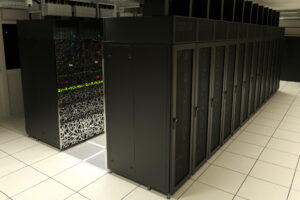
Le cluster comprend 50544 cœurs répartis sur 2106 nœuds (chacun disposant de 2 processeurs Intel 12-Cores (E5-2690 à 2.6 GHz).
La machine est découpée en deux. La moitité des noeuds dispose de 64 Go de mémoire, l’autre moitié de 128 Go utile soit plus de 202 To au total. Les racks de calcul sont connectés à 5 racks montés sur un système de fichiers partagés Lustre avec une capacité de 5 Po utile au total. Le refroidissement est assuré par un système haut rendement à eau tiède directement dans les noeuds (mode DLC Direct Liquid Cooling).
La comptabilisation de la consommation, en heures de calcul sur ce cluster, est basée sur le temps d’utilisation des ressources (temps ELAPSED) et non plus sur le temps CPU.
Les systèmes de fichier sont de deux types. Le /scratch (utilisé pour le stockage des résultats des calculs est de type Lustre. Il dispose de plus de 5 Po de surface utile et d’une bande passante maximum qui dépasse les 105 Go/s.
Le /home est de type Panasas, il est utilisé pour stocker les codes à executer, il profite d’une surface de 260 tO et d’une bande passante de 10 Go/s.
Pour stocker les résultat de façon plus sure, chaque noeud de la machine accède au système de fichier /store. Celui-ci est aussi un système Lustre, mais avec des mécanisme de sécurisation avancés (stockage dupliqué et conservation sur bandes). Il doit être utilisé pour assurer la bonne conservation des résultats.
----------------------------------------------------
Introduction à l’utilisation d’Occigen
Avant de
commencer, il vous faut votre login et votre mot de passe Occigen. Si vous
n’avez pas encore votre mot de passe, appelez le service svp au 04.67.14.14.99.
Connexion à Occigen
Si vous êtes sous Windows, lancez un client SSH (putty, kitty) pour vous
connecter à l'adresse d'Occigen :
occigen.cines.fr
Dans les paramètres de Putty : Category/SSH/X11 cochez la case ‘Enable
X11 forwarding’ afin d’activer le renvoi des fenêtres graphiques.
Si vous êtes sous Linux, ouvrez un terminal, et connectez-vous à Occigen :
ssh –X login@occigen.cines.fr
Vous arrivez dans votre repertoire /home/login sur un nœud de connexion. Sur
Occigen il y a plusieurs nœuds de connexion qui servent à compiler le
programme, à le soumettre sur les nœuds de calcul et à accéder aux fichiers de
résultats.
L’environnement d’Occigen
Sur Occigen, il y a un système de modules. Le chargement d’un module permet
de modifier ou de positionner des variables d’environnement (PATH,
LIBRARY_PATH etc…). Pour voir les modules chargés :
login@occigen:~$ module list
1) /opt/modules/modulefiles/oscar-modules/1.0.3
Aucun module n’est chargé par défaut (sauf le module qui gère les modules)
Bibliothèques communes
Les bibliothèques disponibles peuvent être visualisées ou chargées via les commandes :
- module avail (pour lister ce qui est disponible)
- module load
(pour charger une librairie ou un logiciel dans votre environnement). - module list (pour voir ce que vous avez déjà chargé).
- module purge (pour retirer un environnement déjà chargé).
- module show (pour voir le contenu du module)
Exécution et suivi d’un job
------------
ref:
https://www.cines.fr/calcul/materiels/occigen/environnement/
Monday, March 30, 2015
LAMMPS: OS X with Homebrew
OS X with Homebrew
LAMMPS can be downloaded, built, and configured for OS X easily with Homebrew.Paste that at a Terminal prompt:
ruby -e "$(curl -fsSL https://raw.githubusercontent.com/Homebrew/install/master/install)"Only four of the LAMMPS packages are unavailable at this time because of additional needs not yet met: KIM, GPU, USER-CUDA, USER-ATC.
After installing Homebrew, you can install LAMMPS on your system with the following commands:
% brew tap homebrew/science
% brew install lammps              # serial version
% brew install lammps --with-mpi   # mpi support
This will install the executable "lammps", a python module named "lammps", and additional resources with all the standard packages. To get the location of the additional resources type this:
% brew info lammpsThis command also tells you additional installation options available. The user-packages are available as options, just install them like this example for the USER-OMP package:
% brew install lammps --enable-user-ompIt is usually best to install LAMMPS with the most up to date source files, which can be done with the "--HEAD" option:
% brew install lammps --HEADTo reinstall the LAMMPS HEAD, run this command occasionally (make sure to use the desired options).
% brew install --force lammps --HEAD ${options}
Once LAMMPS is installed, you can test the installation with the Lennard-Jones benchmark file:% brew test lammps -v
Thursday, March 26, 2015
Some clients SSH for mac OS, Apple, macintosh OSX, Cross-platform
The following clients are recommended for interoperating with OpenSSH from Mac OS machines. Note that Mac OS X includes OpenSSH by default (application: terminal; only command line =no GUI).
For example,WinSCP defaults to the SFTP protocol. Even when operating in SCP mode, clients like WinSCP are typically not pure SCP clients, as they must use other means to implement the additional functionality (like the ls command). This in turn brings platform-dependency problems.
---------------------------------------------
Cross-platform:
---------------------------------------------
http://www.openssh.com/macos.html
PS: OpenSSH is a FREE version of the SSH connectivity tools that technical users of the Internet rely on. Users of telnet, rlogin, and ftp may not realize that their password is transmitted across the Internet unencrypted, but it is. OpenSSH encrypts all traffic (including passwords) to effectively eliminate eavesdropping, connection hijacking, and other attacks. Additionally, OpenSSH provides secure tunneling capabilities and several authentication methods, and supports all SSH protocol versions.
The OpenSSH suite replaces rlogin and telnet with the ssh program, rcp with scp, and ftp with sftp. Also included is sshd (the server side of the package), and the other utilities like ssh-add, ssh-agent, ssh-keysign, ssh-keyscan, ssh-keygen and sftp-server.
OpenSSH is developed by the OpenBSD Project. The software is developed in countries that permit cryptography export and is freely useable and re-useable by everyone under a BSD license.
-----------------------
What is SSH Client?
An SSH client is a software which uses the SSH protocol to connect to a remote computer.
In general SSH protocol can be used for two purposes, file transfers and terminal access.
SSH File Transfers
File transfers are primary focus of WinSCP.
WinSCP supports SFTP (SSH File Transfer Protocol) for secure file transfers. In addition to that it also supports legacy SCP (Secure Copy Protocol).
You can use WinSCP to transfer files both manually and automatically.
SSH Terminal Access
While WinSCP does not focus on terminal access, it has basic support for it.
You can execute remote commands via SSH terminal both manually and automatically.
If you need unrestricted terminal access (and still want to use WinSCP for file transfers), you will find integration with PuTTY SSH client useful. This free Telnet and SSH client for Windows can be also downloaded from our PuTTY download page.
http://winscp.net/eng/docs/free_ssh_client_for_windows
--------------
use some programs (Mathematica e.g.):
ssh servername requires an interactive terminal, which you cannot expect Mathematica to give you. How about doing ssh servername command , which will actually run the command you want, then return. That doesn't require an interactive terminal.
- http://portingteam.com/index.php/files/file/7089-winscp/
Download: -
WinSCP is an open source free SFTP client, SCP client, FTPS client and FTP client for Windows. Its main function is file transfer between a local and a remote computer. Beyond this, WinSCP offers scripting and basic file manager functionality. Like Cyberduck, or Filezilla, but more powerful!
Remark: You can use winscp to connect to mac machine, but after you enable ssh on mac (System Preferences -> Sharing -> Check Remote Login).
---------------------
ZOC • SSH/Telnet Client and Terminal Emulator for Mac OS X and Windows
http://www.emtec.com/zoc/
not free
---------------------
One of the best GUI application for SSH (and everything else you can do on the command line) is iTerm 2. https://code.google.com/p/iterm2/ While the original iTerm had a tabbed interface before Terminal did, iTerm 2 again eclipses Terminal by adding:
- Support for 256 colors (you'll never go back to 16 colors after using 256)
- Split panes (the sort of thing you can do in GNU screen or tmux, but at the level of the terminal emulator rather than in a program running on the server)
- Special provision for integrating with tmux (an alternative to GNU
screen, and which most people regard as better & faster thanscreen) - Terminal-level auto-completion (I don't use this feature so I can't detail how it has advantages over shell-level autocompletion: especially if you use the fish shell or zsh, then it may not be better)
- Growl support
- an Exposé-like view of your tabs
- a full-screen view (and you can choose from either its own or OS X's built-in full-screen mode; I greatly prefer iTerm's own full-screen mode, since it doesn't force you to move to a new 'Space', thus allowing Command-Tab to still work properly)
- paste history (a good complement to the shells' command histories)
- Search
- Instant Replay
ZOC • SSH/Telnet Client and Terminal Emulator for Mac OS X and Windows
http://www.emtec.com/zoc/
not free
---------------------
- https://cyberduck.io/; Free
- http://panic.com/transmit/; Transmit does support SSH now, and it's damn fast and user-friendly.
- http://www.rbrowser.com/; Easy-to-use FTP - SFTP/SSH Remote File Management, File Transfers and Folder Synchronization
- NiftyTelnet 1.1 SSH is an SSH1-only implementation which comes with a scp-style program. Written by Jonas Wallden."NiftyTelnet 1.1 SSH r3 is an enhanced version of Chris Newman's NiftyTelnet 1.1 application which adds support for encrypted terminal sessions using the SSH (Secure Shell) protocol. Please read the included Readme file before distributing this version."
- MacSSH is an SSH2-only implementation."MacSSH is a modified version of BetterTelnet with SSH2 support. [...] The only SSH2 client for Mac OS that I could find is a commercial product thats costs more than $100, and it crashes my Mac when closing a session... Since it's best to do things by oneself, here's MacSSH."
- Fugu is an implementation of SFTP and SCP for Mac OS X."Fugu SSH is a Mac OS X graphical frontend to OpenSSH's Secure File Transfer application (SFTP). Fugu allows you to take advantage of SFTP's security without having to sacrifice the ease of use found in a GUI. Fugu also includes support for SCP files transfers, and the ability to create secure tunnels through SSH."
For example,WinSCP defaults to the SFTP protocol. Even when operating in SCP mode, clients like WinSCP are typically not pure SCP clients, as they must use other means to implement the additional functionality (like the ls command). This in turn brings platform-dependency problems.
---------------------------------------------
Cross-platform:
- FireFtp: It's a plug-in for Firefox (that means it's cross-platform). But FireFTP is an FTP client, not an SCP/SSH client.
- FireSSH is a free, cross-platform SSH terminal client for Mozilla Firefox. Written entirely in Javascript!
- Secure Shell is an xterm-compatible terminal emulator and stand-alone ssh client for Chrome. It uses Native-Client to connect directly to ssh servers without the need for external proxies.
- http://www.mucommander.com/; cross-platform file manager with a dual-pane interface. It runs on any operating system with Java support
------------------------------------------------------
Moreover you can always transfer your files using a terminal. For example using the following command will transfer a file from your mac to a remote server using the scp command:
Moreover you can always transfer your files using a terminal. For example using the following command will transfer a file from your mac to a remote server using the scp command:
Code:
scp -P portnum -i path/to/keyfile path/to/file_you_are_uploading user@server:path/on/server
-P portnum is the port number of the remote server. If your using port 22 then you don't need to specify a port here. But if you are using a port number other that 22, then place it behind the -P
-i path/to/keyfile is your private key file. I personally don't use passwords when using ssh/scp instead I use private keys. If you use passwords then dont use the -i statement
---------------------------------------------
http://www.openssh.com/macos.html
PS: OpenSSH is a FREE version of the SSH connectivity tools that technical users of the Internet rely on. Users of telnet, rlogin, and ftp may not realize that their password is transmitted across the Internet unencrypted, but it is. OpenSSH encrypts all traffic (including passwords) to effectively eliminate eavesdropping, connection hijacking, and other attacks. Additionally, OpenSSH provides secure tunneling capabilities and several authentication methods, and supports all SSH protocol versions.
The OpenSSH suite replaces rlogin and telnet with the ssh program, rcp with scp, and ftp with sftp. Also included is sshd (the server side of the package), and the other utilities like ssh-add, ssh-agent, ssh-keysign, ssh-keyscan, ssh-keygen and sftp-server.
OpenSSH is developed by the OpenBSD Project. The software is developed in countries that permit cryptography export and is freely useable and re-useable by everyone under a BSD license.
-----------------------
What is SSH Client?
An SSH client is a software which uses the SSH protocol to connect to a remote computer.
In general SSH protocol can be used for two purposes, file transfers and terminal access.
SSH File Transfers
File transfers are primary focus of WinSCP.
WinSCP supports SFTP (SSH File Transfer Protocol) for secure file transfers. In addition to that it also supports legacy SCP (Secure Copy Protocol).
You can use WinSCP to transfer files both manually and automatically.
SSH Terminal Access
While WinSCP does not focus on terminal access, it has basic support for it.
You can execute remote commands via SSH terminal both manually and automatically.
If you need unrestricted terminal access (and still want to use WinSCP for file transfers), you will find integration with PuTTY SSH client useful. This free Telnet and SSH client for Windows can be also downloaded from our PuTTY download page.
http://winscp.net/eng/docs/free_ssh_client_for_windows
--------------
use some programs (Mathematica e.g.):
ssh servername requires an interactive terminal, which you cannot expect Mathematica to give you. How about doing ssh servername command , which will actually run the command you want, then return. That doesn't require an interactive terminal.
CINES supercomputing, Activity of supercomputer and available softwares
Disponibilité et activité des machines de calcul :
https://reser.cines.fr/dispo/
tous les logiciels installés disposent d’un module. Il est possible d’utiliser la commande pour connaître l’ensemble des modules installés sur la machine.
Comment utiliser un logiciel ? La commande module
La commande module peut être utilisée des manières suivantes :
- liste l’ensemble des modules installés sur la machine (par ex. abinit).
- permet d’ajouter le module à la session en cours (par ex. ).
- donne des informations sur le module (version, conflit avec d’autres modules, etc..).
- liste l’ensemble des modules chargés pour la session en cours.
Une fois la commande utilisée, vous pouvez utiliser le logiciel correspondant.
https://www.cines.fr/calcul/faq/
Subscribe to:
Posts (Atom)